Snapchat Conversion Setup Guide
Set up and configure Snapchat Conversion as a destination in RudderStack.
4 minute read
This guide will help you set up Snapchat Conversion as a destination in the RudderStack dashboard. It also lists the configuration settings required to correctly send data from the supported sources to Snapchat.
Connection compatibility
| Destination Information | |||
|---|---|---|---|
| |||


Get started
Once you have confirmed that the source platform supports sending events to Snapchat Conversion, follow these steps:
- From your RudderStack dashboard, add the source. Then, from the list of destinations, select Snapchat Conversion.
- Assign a name to your destination and click Continue.
Connection settings
| Setting | Description |
|---|---|
| API Token | Enter the API token generated from your Snapchat dashboard. |
| API Version | Select the Conversions API version from the dropdown. RudderStack recommends using the Conversions API v3 as v2 is deprecating soon. |
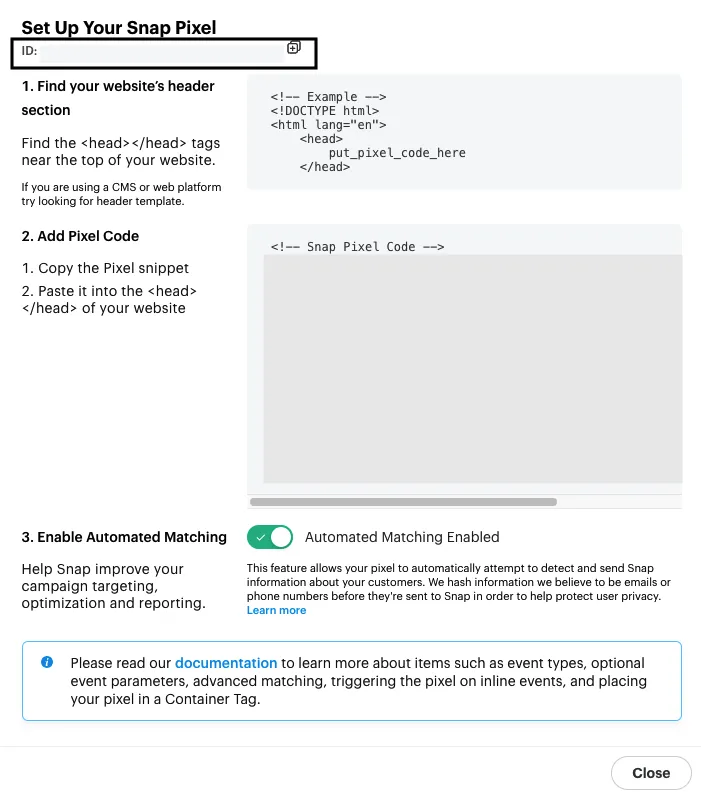
| Pixel ID | Enter your Snap Pixel ID required for sending the web and offline events. |
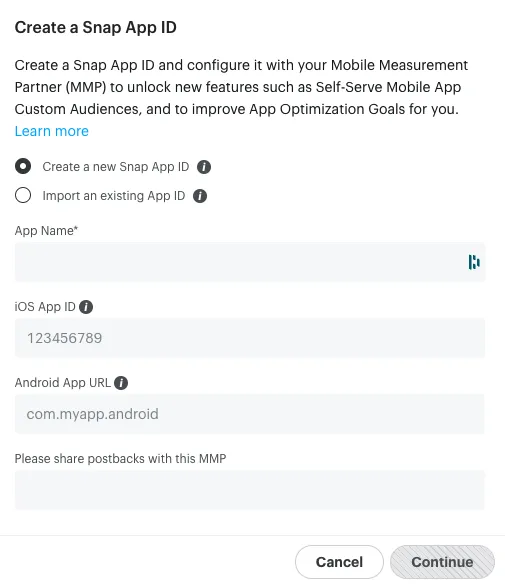
| Snap App ID | Enter your Snapchat App ID required for sending the app events. See Generate your Snap App ID for more information on generating this ID. |
| App ID | Enter the unique app ID associated with your application required for sending the app events. Note: The App ID is different from Snap App ID. It should be a numeric value for iOS and in a human-readable string format in case of Android. See the Conversions API reference for more information. |
| Map your events with Snapchat Standard Events | Enter the event name and select the corresponding Snapchat standard event from the dropdown to be triggered when you send the RudderStack event. You can specify multiple Snapchat standard events for one RudderStack event and vice versa. |
Other settings
| Setting | Description |
|---|---|
| Enable Event Deduplication | Turn on this setting to deduplicate the events. |
| Deduplication key | This setting is visible if Enable Event Deduplication is toggled on. Enter the property name to map to a standard Snapchat Conversion property client_dedup_id which Snapchat uses to deduplicate the events. |
| Consent management settings | Configure the consent management settings for the specified source by choosing the Consent management provider from the dropdown and entering the relevant consent category IDs. See Consent Management in RudderStack for more information on this feature. |
FAQ
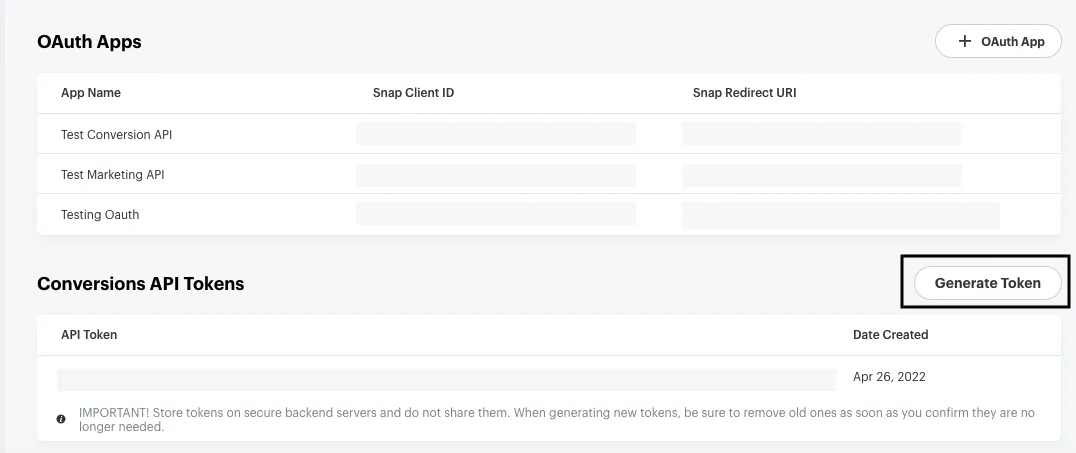
Where can I find the Conversions API token?
- Go to your Snap Ads Manager account.
- Click Create Ads option in the top left section of the dashboard and go to Business Details > Conversions API Tokens. You will find all API tokens associated with your account listed here.
- To generate a new Conversions API token, click Generate Token.
Where can I find the Pixel ID associated with my account?
- Go to your Snap Ads Manager account.
- Click Create Ads option in the top left section of the dashboard and go to Events Manager.
- Then, click Setup Snap Pixel. You will see the following options:
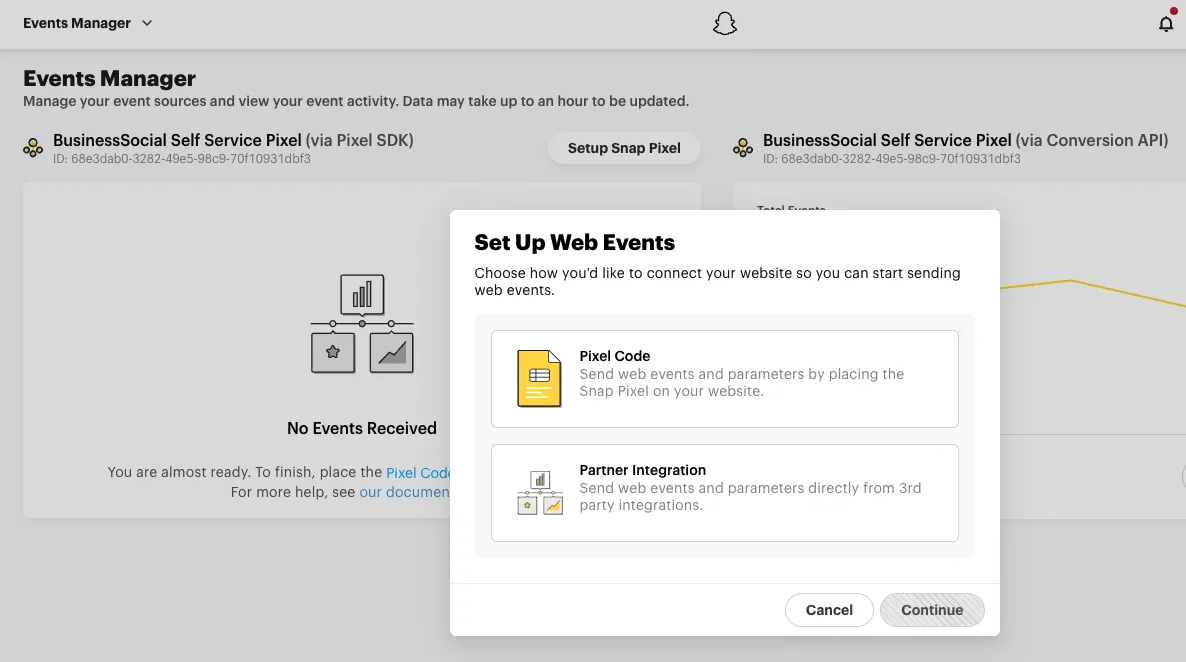
- Select Pixel Code and click Continue.
- You will see the Snap Pixel ID at the top left of the resulting window:
Where can I find the App ID associated with my application?
- Go to your Snap Ads Manager account.
- Click Create Ads option in the top left section of the dashboard and go to Apps. You will find the App ID associated with all your apps listed here.
To add a new app:
- Click Add an App.
- You can either create a new Snap App ID or importing an existing App ID.
- Then, enter your App Name and the relevant app ID/URL depending on your app’s platform.
- Finally, add any postbacks and click Continue to finish the setup.