BigQuery Stream
6 minute read
Google BigQuery offers a streaming API which lets you insert data into BigQuery in near real-time and have it ready for analysis in no time.
Find the open source transformer code for this destination in the GitHub repository.
Prerequisites
Before you set up BigQuery Stream as a destination in the RudderStack dashboard, make sure to obtain the required access to write to BigQuery.
RudderStack recommends creating a service account in your Google Cloud Console with the BigQuery Data Editor role.
Connection compatibility
| Destination Information | |||
|---|---|---|---|
| |||


Get started
- In your RudderStack dashboard, set up a source.
- Go to the Overview tab of your source and select Add Destination > Create new destination.

- Select BigQuery Stream from the list of destinations. Then, click Continue.
Connection settings
| Setting | Description |
|---|---|
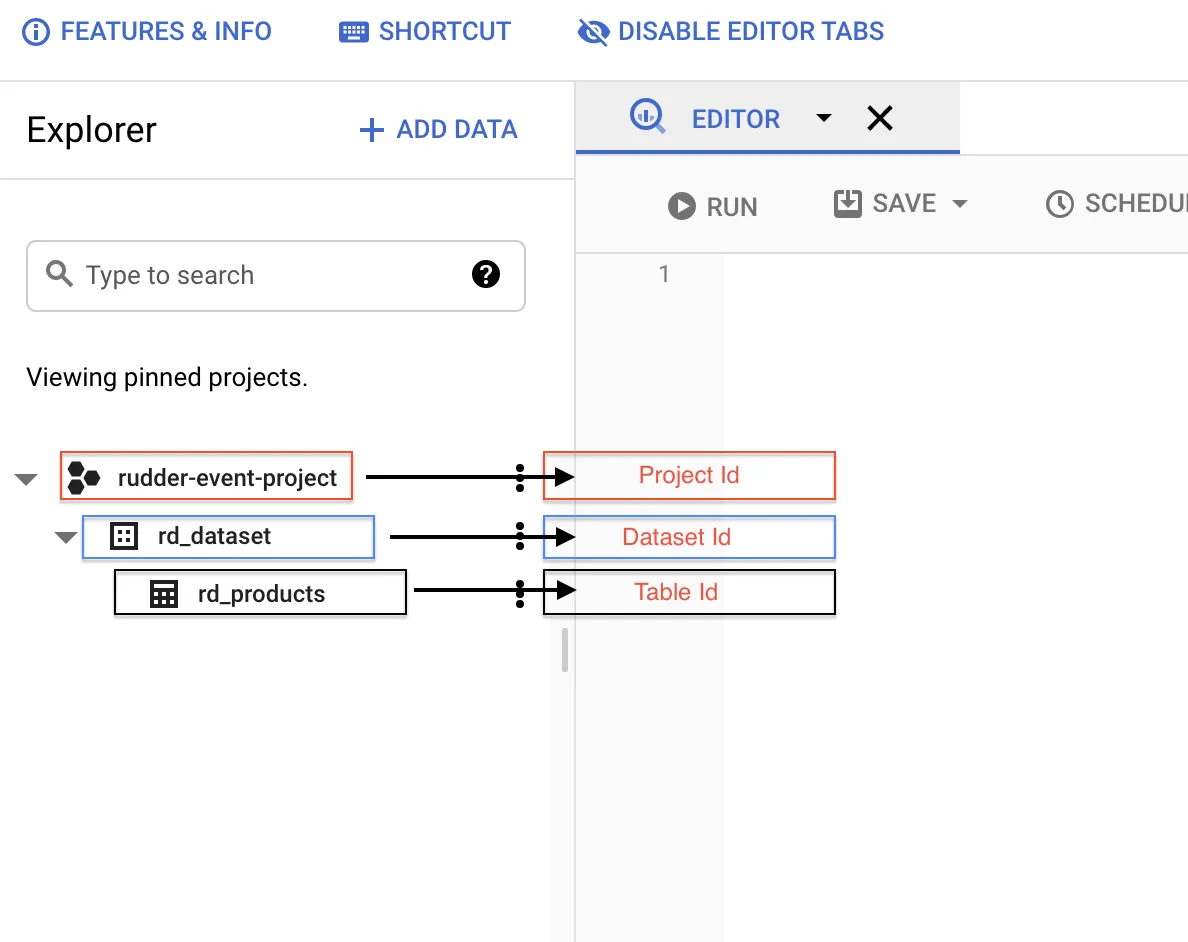
| Project ID | Enter your BigQuery project ID. |
| Dataset ID | Enter the ID of the project dataset associated with the Project ID above. |
| Table ID | Provide the ID of the table into which you want to stream the event data. |
| Insert ID | This is an optional field. Enter the insertId used by Google to deduplicate the data sent to BigQuery.See Deduplicate data for more information on this setting. |
| Credentials | Enter the contents of the credentials JSON you downloaded after creating your service account. |
The following screenshot shows the fields associated with the Project ID, Dataset ID, and Table ID settings listed above:
Send events to BigQuery Stream
RudderStack supports sending only track events to BigQuery Stream.
Note the following:
- Make sure your
trackevent payload format matches the table schema corresponding to Table ID specified in the dashboard settings.- RudderStack does not support the
templateSupportSuffixfeature which creates a table schema during a streaming insert action.
Suppose you want to stream the events from your web source to BigQuery and the table schema in your BigQuery dataset is as follows:
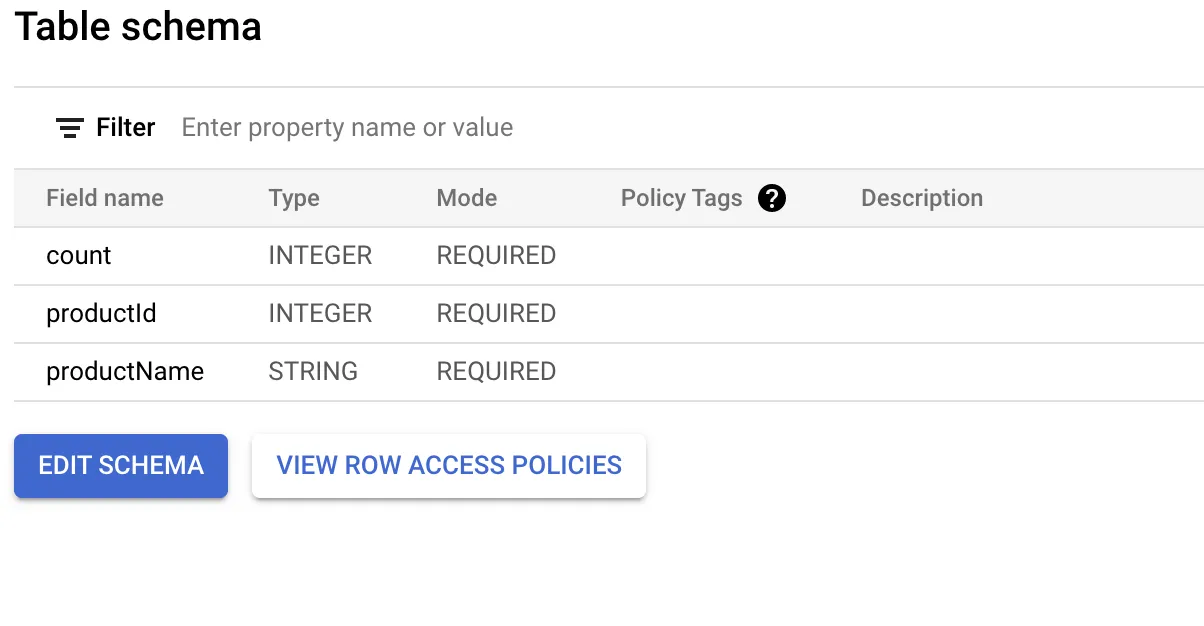
To successfully stream the events, the event tracked from your JavaScript SDK should look like the following:
rudderanalytics.track("event", {
  productId: 10,
  productName: `Product-10`,
  count: 12
});
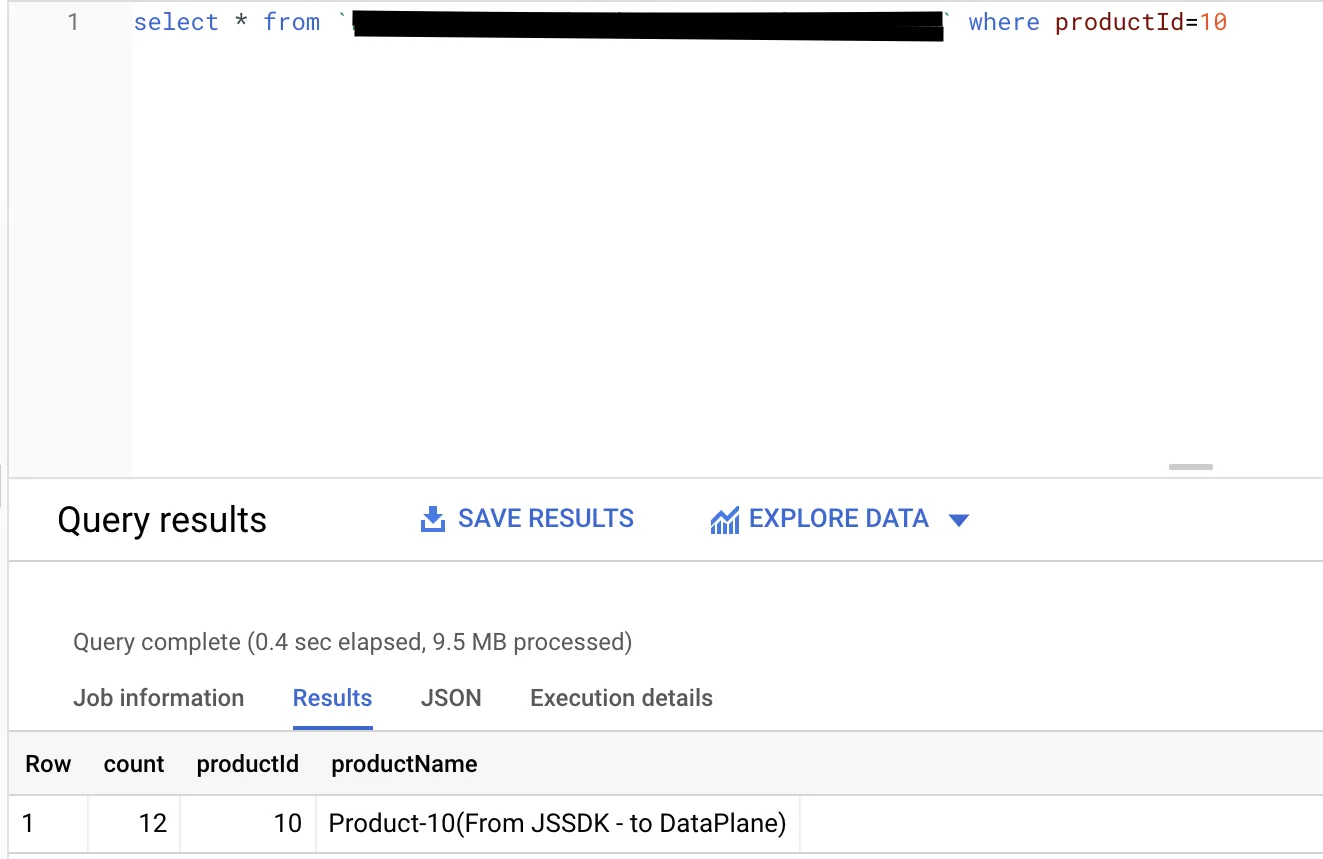
Note that the track properties in the above payload match with the fields specified in your table schema. Once streamed, you can view this event in your BigQuery console by running the following SQL command :
Deduplicate data
Google leverages the insertId to deduplicate the data sent to BigQuery. insertId is essentially an event property that uniquely identifies an event.
RudderStack currently supports only numeric or string values asinsertId.
For more information on the deduplication process in BigQuery, refer to the BigQuery documentation.
Use case
Consider the following table schema:
When sending an Insert Product event to BigQuery, you can use the productId field to uniquely identify the product. Upon setting productId as the insertId, BigQuery uses it to deduplicate the data.
Configure insertId dynamically
Use this feature if you are dynamically configuring BigQuery Stream via the event payload.
To dynamically configure insertId via the event payload, make sure that insertId is the column name present in your schema (or in the properties object in the event payload) used to uniquely identify an event.
Consider the following schema:
Suppose you have a dynamic configuration like {{ message.uniqueId || "productId" }} for the above schema. There are three cases to consider here:
Case 1: Unique ID is sent as a value which is not a key in the event properties
Consider the following payload:
{
  "properties": {
    "productId": 212,
    "productName": "my product",
    "count": 24
  },
  ...,
  "uniqueId": <some_value> ,
  ...
}
In the above case, deduplication is not applicable as the event properties do not contain <some_value> present in the payload.
Case 2: Unique ID is sent as a value which is a key in the event properties
Consider the following payload:
{
  "properties": {
    "productId": 212,
    "productName": "my product",
    "count": 24
  },
  ...,
  "uniqueId": "productId",
  ...
}
In this case, deduplication is applicable as RudderStack sends the productId value (212) as the insertId to Google.
Case 3: Unique ID is not sent in the event payload
Consider the following payload:
{
  "properties": {
    "productId": 212,
    "productName": "my product",
    "count": 24
  },
  ...
}
In this case, deduplication is applicable as RudderStack sends the productId value (212) as the insertId to Google.
If you use the dynamic destination configuration for insertId by passing a random value (e.g. 1234) in the above payload, deduplication will not be applicable as the properties object does not contain the value 1234.
Create a service account
To create a service account in your Google Cloud Console, follow these steps:
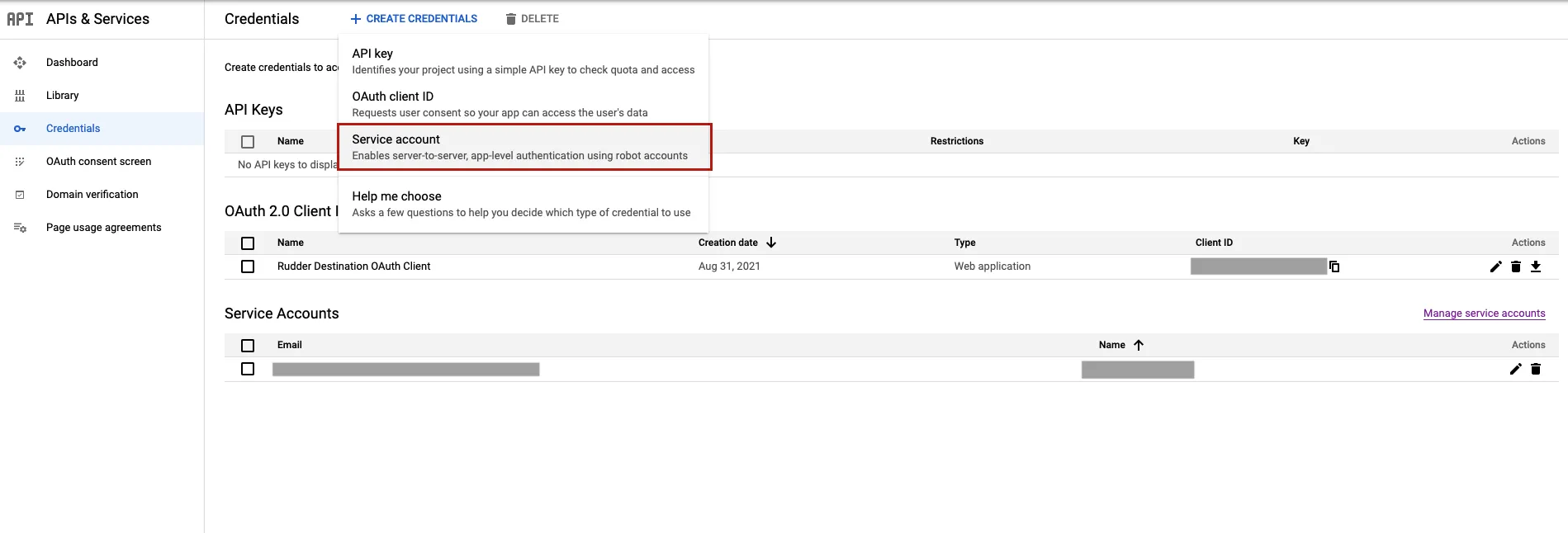
- In the left sidebar, go to APIs & Services > Credentials.
- Then, click CREATE CREDENTIALS > Service account:
- Enter the service account details and click CREATE AND CONTINUE.
- In the Select a role field, search and select the BigQuery Data Editor role and click CONTINUE.
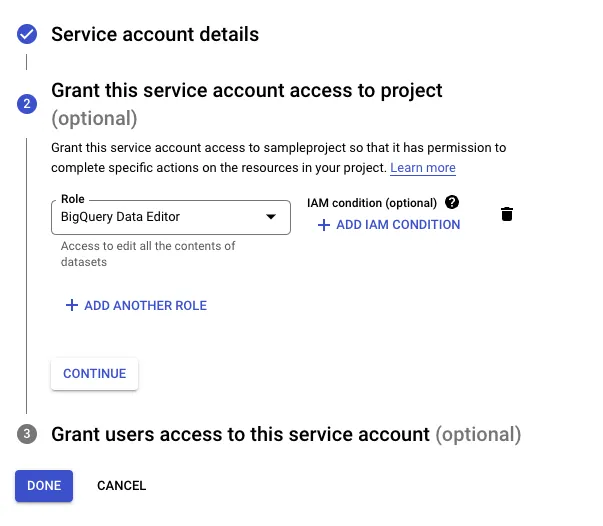
- Click DONE to finish the setup.
- Next, you need the service account credentials JSON required for RudderStack to send the data to BigQuery. To obtain this JSON, go to your service account.
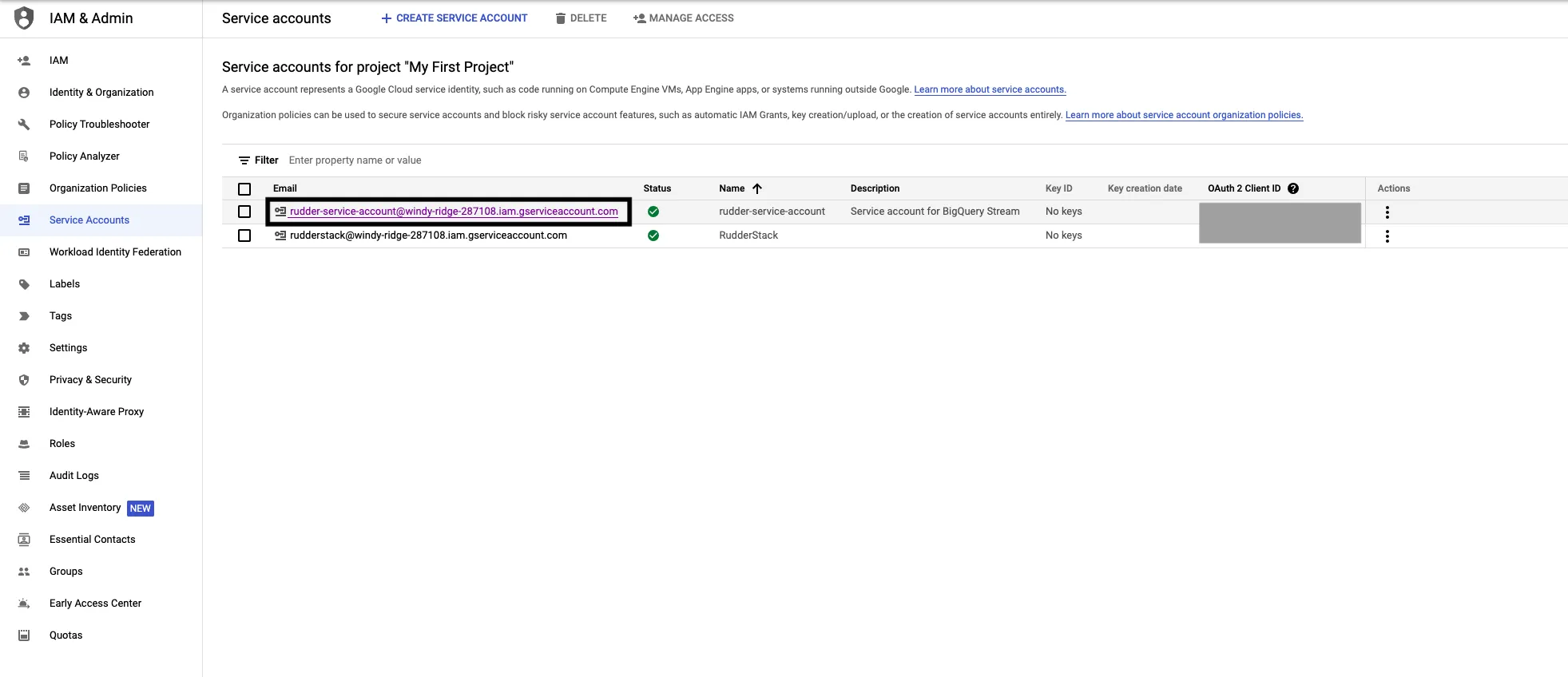
- Then, go to KEYS > ADD KEY > Create new key.
- Select the Key type as JSON and click CREATE.
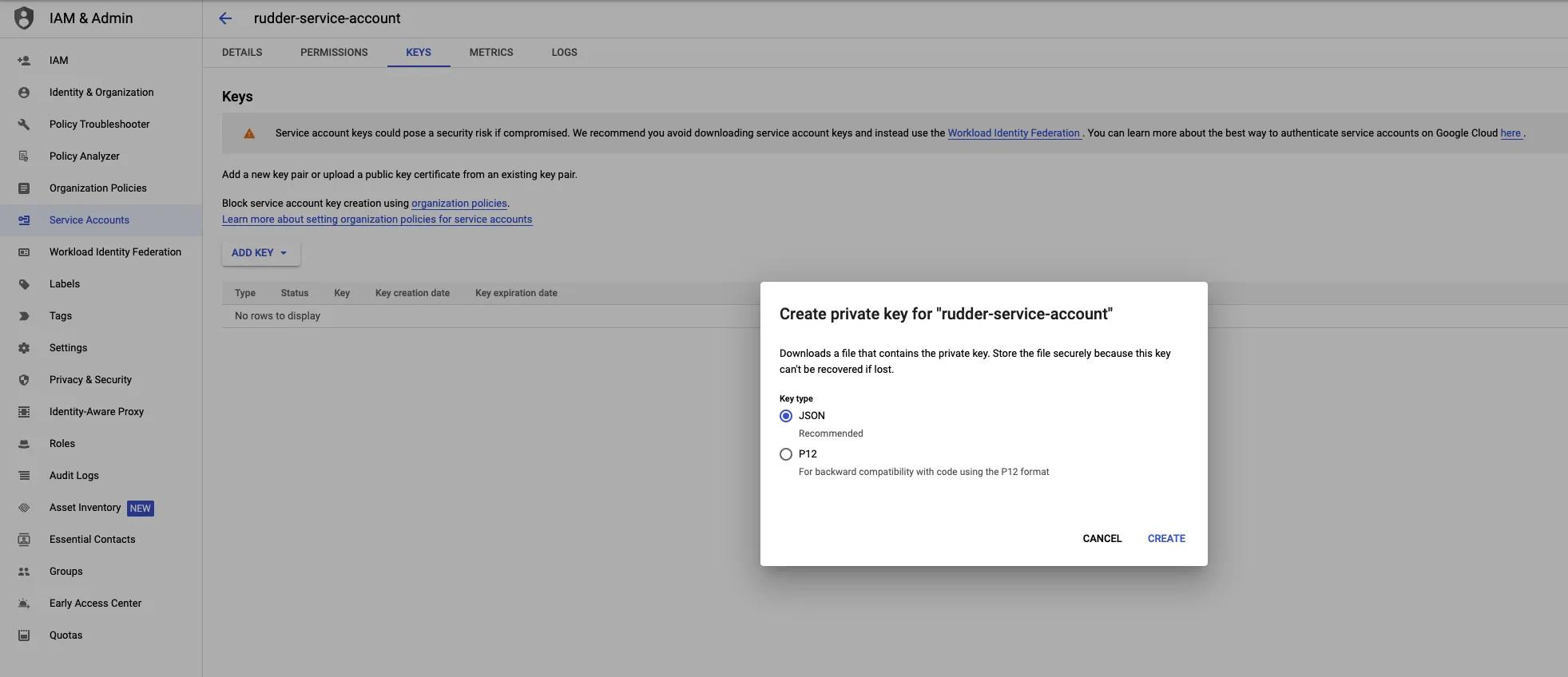
Your JSON key will be automatically downloaded. Copy and paste the contents of this JSON key in the Credentials field while configuring BigQuery Stream as a destination in RudderStack.
Considerations
Note the following before sending your event data to the BigQuery Stream destination:
You must ensure that the instrumented event aligns with the BigQuery table schema. You can leverage Transformations to modify the event.
For fields defined as JSON and RECORD types in the BigQuery table, there are additional aspects to consider:
- JSON: For fields defined as JSON, the element should be stringified before sending to BigQuery — you can leverage Transformations to do this.
- RECORD: For fields defined as RECORD, the JSON object can be sent as-is. However, it should only include the fields explicitly defined within the RECORD schema.
During ingestion, RudderStack does not fetch or validate the schema — the payload is forwarded as received.
Troubleshooting
See the BigQuery documentation for troubleshooting the different errors you might encounter while sending your event data to BigQuery Stream.
FAQ
How much time does it take for RudderStack (client) to see the new DDL changes?
RudderStack doesn’t fetch the schema. However, when the DDL of a BigQuery table is updated, it may take a few seconds for those changes to propagate in BigQuery.
During this window, clients may still encounter failures until the updated schema is fully applied and visible to the client.
